
Having trouble with audio or sound on your CyberPowerPC computer? If you notice symptoms like no sound or no audio, stuttering, jarring, crackling or choppy audio, intermittent audio, distorted audio, follow the troubleshooting steps below.
Troubleshooting
The sections below will offer more information to troubleshoot your recording issues, please follow the troubleshooting steps in a sequence.
For help with microphone issues, refer to the CyberPowerPC knowledge-base article How to troubleshoot microphone issues
Check the audio ports for damage and clean the ports
Audio performance issues may occur if there is any type of damage caused to the audio cables or the audio ports on the PC. You may experience symptoms like microphone stops working, works intermittently, choppy or distorted audio, static noise, etc.
Audio ports are exposed to elements that may cause a build-up of dust or even physical damages. If you notice that the port or connector has dust or other contaminants, use a can of compressed air to clean the ports.
If you do notice physical damage, contact CyberPowerPC Technical Support to learn more about repair options that are available in your region. If there is no damage, proceed to the next step.
Restart your CyberPowerPC PC
A simple reboot can resolve many issues almost immediately. Restarting your PC is an effective way to clear the memory (RAM) and ensure that any errant processes and services that started are shut down.
Restarting your PC closes all the applications or software running on your PC, applications running on the taskbar and dozens of other services that may be running in the background which were started by various applications.
Check the speaker or headphone/earphone connection
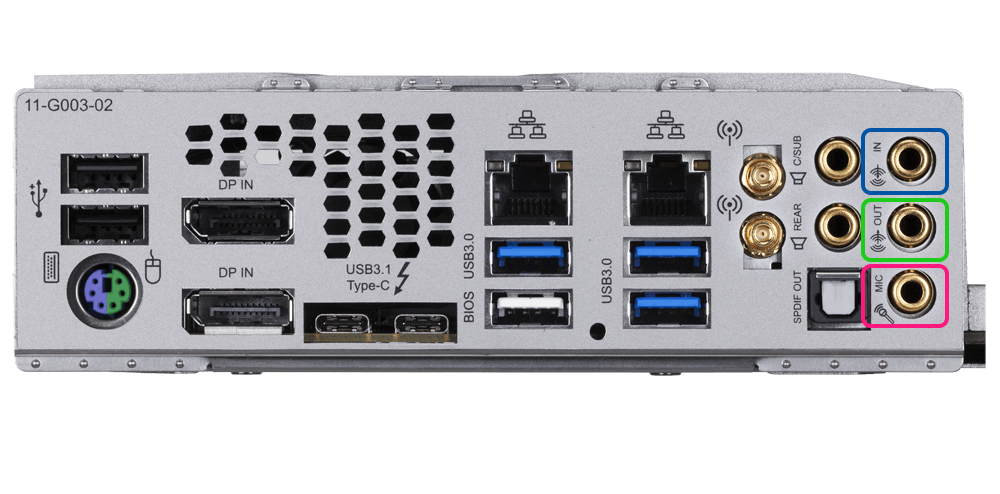
Most desktop PCs come with 3 or more audio connectors and laptops usually come with one audio connector. Verify that the speaker cables are properly connected from your speaker to the PC. Audio connectors and plugs on the sound card are normally color-coded to help with the proper connection (Figure 1).
- Ensure that the speakers are powered using the provided AC adapter, batteries or USB cable.
Note: Depending on the type or model, the speaker may use an AC adapter, USB power or batteries to provide power. Refer to the User Manual of your device to learn more.
-
Connect the speaker or headphone jack directly into the 'line-out' or 'speaker-out' connector on your PC.
 Turn up the volume using the volume knob on the speaker. Refer to the User Manual of your device on how to control the volume.
 -
Test the sound on your PC.
-
In the System Tray, right-click on the speaker icon and select Sounds and then select the Playback Tab.
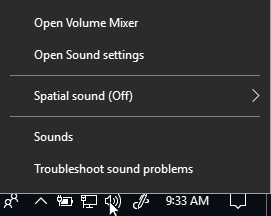
-
Right-click on the correct playback device and click Test.
-
If the audio playback issue persists, proceed to the next step.
Check Volume Levels
-
Verify the volume is not muted by checking the Volume Control icon on the taskbar.
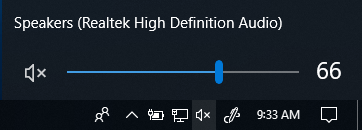
- If it is muted, just click on the speaker icon with the X to the left of the volume slider.
Run Microsoft Sound Troubleshooter
Microsoft Windows includes a variety of 'troubleshooters' designed to quickly diagnose and automatically resolve many PC problems. Although Windows Troubleshooter cannot fix hardware problems, they are a great place to start if you encounter a problem with your PC. Windows Troubleshooters are built into the Control Panel in Windows 10, 8.1 or 8 and 7.
How to run Windows Troubleshooter in Microsoft Windows 10?
- Click Start and select Settings (gear icon).
- Click Update & Security and select Troubleshoot.
- Click Playing Audio and then click Run the troubleshooter.
- Follow the on-screen instructions to complete the troubleshooting process.
If the issue persists, proceed to the next step.
Troubleshoot Bluetooth devices (Bluetooth speakers or headphones)
Pair your Bluetooth speaker or headset with your PC.
- Windows 10 - Connect to a bluetooth device in Windows 10
Reinstall or Update chipset driver, audio driver and BIOS
CyberPowerPC recommends updating the device drivers and BIOS as part of your scheduled update cycle. Device drivers and BIOS updates may contain feature enhancements or changes that will help keep your system software current and compatible with other system modules (hardware and software) as well as increased stability.
It is essential to update the following device drivers for optimal recording performance and to resolve common microphone related issues:
- BIOS
- Chipset driver
- Audio driver
Download and install Microsoft Windows updates
Windows updates can support your Windows operating system in many ways. Windows updates can solve specific problems, provide protection from malicious attacks, or even add new features to the operating system.
How to install Windows Updates in Microsoft Windows 10 and Windows 8 or 8.1?
- Right-click Start and click Settings.
- In the Settings panel, click Update & Security.
- In the left panel, select Windows Update.
- On the right panel, click Check for updates.
- Restart the PC after downloading and installing the updates.
If the issue persists, proceed to the next step.
Perform Windows System Restore
System Restore is a built-in Windows tool designed to protect and repair the operating system. When something goes wrong with your PC, System Restore should be used prior to restoring the PC to factory defaults.
Select the Operating System installed on your PC to find more information about how to perform System Restore:
If the issue persists, proceed to the next step.
Restore your PC to factory defaults
If the diagnostic tests on the USB ports passed, it is most definitely an issue related to software installed on your PC. If the above troubleshooting steps did not resolve the issue, you can try to restore your PC to factory defaults as a last resort.
CyberPowerPC PCs are built with a small amount of hard disk space reserved for reinstalling your operating system. This method is the easiest way to restore your PC to factory condition. The restoration process deletes all user data from the PC, so be sure to back up all your files prior to starting this process
Select the Operating System installed on your PC to find more information about how to restore your PC to factory defaults:
Article Version DK.01
Comments
2 comments
Troubleshooting audio or sound playback issues can be straightforward if you follow the right steps. First, check if your speakers or headphones are properly connected and powered on. Oriental sound systems, like other devices, may require driver updates or configuration adjustments. Ensure your audio drivers are up-to-date and the correct playback device is selected in settings. Test the audio with different apps to rule out software-specific problems. If there’s no sound, inspect the volume levels and mute settings. For persistent issues, try restarting your device or running the built-in audio troubleshooter (available in Windows). If hardware is faulty, consult a technician or consider replacing the component. Always keep your system updated to avoid compatibility issues.
If that doesn't work, try running the Windows Audio Troubleshooter, updating audio drivers, or disabling audio enhancements. Further steps include checking the audio output device settings and restarting your computer. If problems persist, try updating or reinstalling audio drivers, running the Windows audio spacebar counter troubleshooter, and checking for Windows updates. If the issue is specific to an application, check its individual volume settings and mute status. check whether the power outlet is working or not. If this doesn't solve your problem, then check for a loose wire or any connector damage. Switching it on and off a couple of times also helps in some cases.
Article is closed for comments.